← Back to Home SUNO

SUNO — inventing the song

What SUNO is, how to get set up, and how to use it so its output feeds cleanly into the rest of the chain.

A note on this page

Unlike the Moises material, the SUNO content here is drafted from general working knowledge, not a verified source document. SUNO changes features, tiers, and pricing often — treat specifics as directional and confirm in your own SUNO account before relying on anything load-bearing.

The concept in one line

SUNO's role

You describe a song in plain language — genre, mood, instrumentation, vocal character — and SUNO generates a complete, produced track: arrangement, performance, vocal, and lyrics, all at once. It invents an entire musical world from a prompt. That's the opposite of what Moises does (react to audio you already have) and different again from Logic (where you finish and mix). In this workflow, SUNO is where an idea first becomes audio.

What SUNO is good at

Invention

A whole song, fast

From a short description you get a full arrangement with vocals in a couple of minutes — the fastest way to turn a concept into something you can actually hear and react to.

Exploration

Many directions cheaply

Because generating is quick, SUNO is strong for exploring variations — different genres, tempos, or moods on the same lyrical idea — before you commit real production time.

Starting material

A draft to build on

Its real value in this chain is as a starting point: a sketch you bounce out, bring into Logic, and repair or rebuild with Moises and your own production — not a finished master.
SUNO can do more than this workflow asks of it

Worth being clear, since it's easy to imply otherwise: SUNO has its own stem splitter, and SUNO Studio can take a track all the way to a finished product without ever touching a DAW. So the hand-offs below are a preference — how this Logic-centered workflow likes to work — not a list of things SUNO can't do.


Getting an account going

  1. Create an account at SUNO and sign in to the web app.
  2. Review the current plan tiers. There's typically a free tier with a limited daily credit allotment, and paid tiers that add more monthly credits, faster/priority generation, and — importantly for this workflow — clearer commercial-use terms. Check the current terms rather than assuming.
  3. Note how credits work: generating songs consumes credits, and allotments differ by plan. If you plan to explore many variations, factor that into which tier you pick.
  4. Confirm the commercial-use terms for your tier before you build anything you intend to release — this is the setting most worth verifying up front.
Verify plans and commercial terms yourself

Exact credit counts, prices, and licensing language shift often and vary by region. Don't take a number from any guide (including this one) as current — read it off your own account's billing/plan page.

Setting up for a clean handoff

Since SUNO is the front of the chain, "setup" is mostly about configuring yourself to hand material off cleanly:


Using it in practice

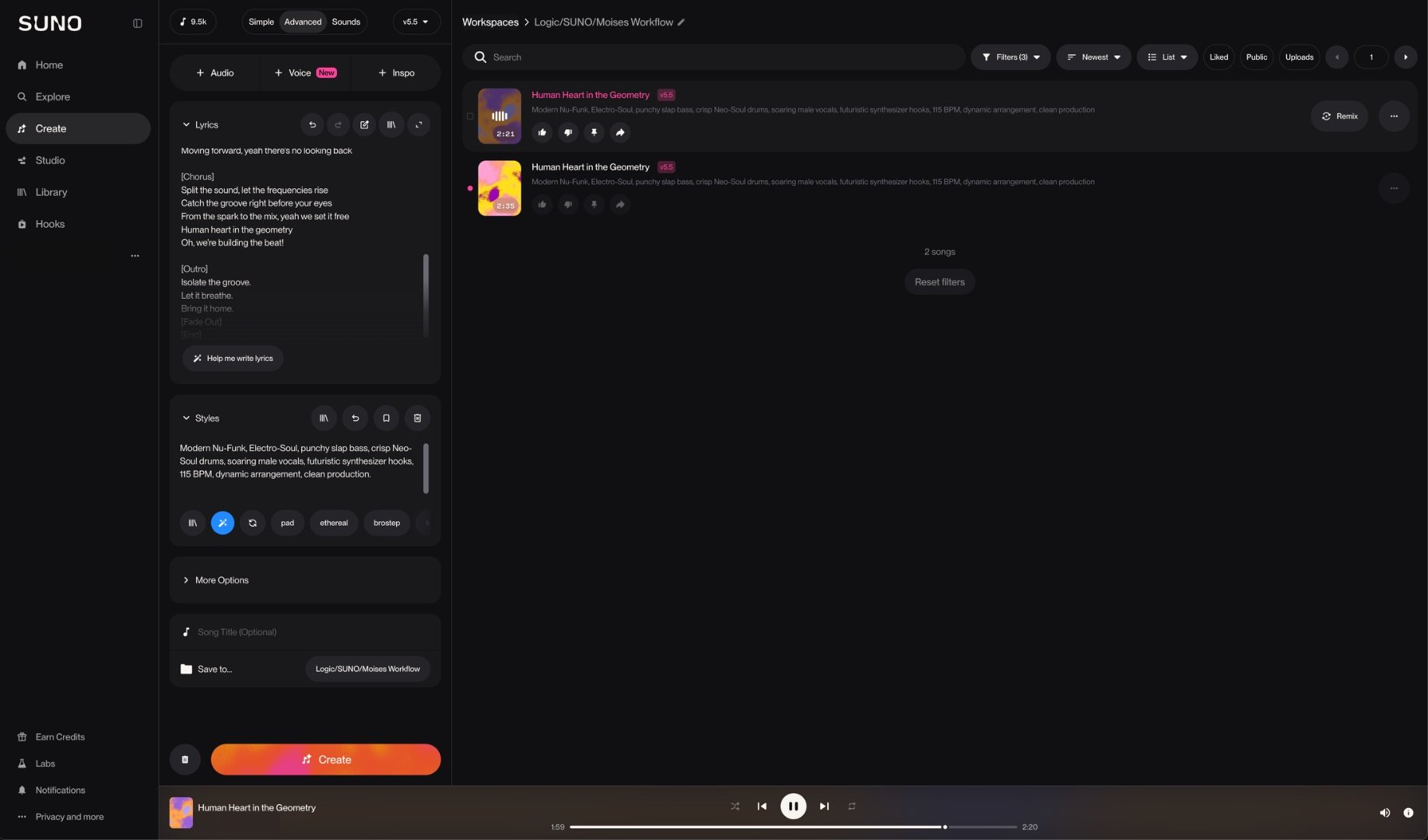
SUNO's Create panel with a song description prompt field and a workspace library of previously generated tracks.
The Create panel — a plain-language song description on the left, the workspace library of generations on the right.

Prompting basics

Sound

Style description

Genre, era, instrumentation, mood, and vocal character in plain language — "moody 90s trip-hop, female alto vocal, sparse Rhodes, brushed drums" reads more reliably than a single genre word.

Form

Structure tags

Section markers like [Verse], [Chorus], [Bridge], [Outro] in the lyric field help SUNO understand arrangement intent rather than treating the whole lyric block as one continuous idea.

Limits

Negative/avoid language

Same principle as Moises prompting — stating what to avoid ("avoid busy drum fills," "no key change in the final chorus") narrows the result as much as stating what you want.

Method

Iteration over one-shot

Treat the first render as a draft. Regenerating sections, adjusting style tags, and re-rolling specific passages tends to get you closer than trying to perfect one prompt up front.

Voice

Vocal direction

Steer the performance, not just the timbre — register, delivery, and how the voice is arranged. "Intimate, breathy male tenor, light doubled harmonies on the hook, a few ad-libs in the outro" shapes how the vocal is sung and stacked, not just what it sounds like.

Mix

Production & energy tags

Parenthetical descriptors and dynamic cues shape the mix and the arc rather than the notes — (reverb-drenched), (lo-fi tape), "drop to just vocal and pad in the bridge," "build to a big final chorus."

Common use cases

Getting a clean bounce out

Whatever export quality options SUNO offers you at your tier, grab the highest-fidelity render available — the same principle from the Moises pages applies here too: lossy sources make every downstream step (separation, generation) measurably harder. If a WAV/lossless export option exists, use it over MP3.

If this is headed toward commercial distribution

Separating or regenerating a SUNO export through Moises does not remove the underlying AI statistical fingerprint that distributor screening tools check for on ingestion. That fingerprint lives in the audio's own spectral/temporal characteristics, not in something separation or regeneration strips out. This only matters if a SUNO-originated track is headed toward commercial distribution — it has no bearing on internal production or demo work.

Where SUNO hands off to the rest of the chain

Once you have a render you want to build on: bounce it out, bring it into Logic to establish the authoritative tempo map and structure, then use Moises where you specifically need a part repaired or isolated at a finer grain than SUNO or Logic can give you. See the Combined Workflow page for the full chain laid out step by step.