Separation & AI generation
Pulling a mix apart into finer stems than Logic offers, and generating a new part that locks to audio you already have.
Separation by tier
| Tier | Available separations |
|---|---|
| Free | 2-track (Vocals, Instrumental) or 4-track (Vocals, Drums, Bass, Other). Limited uploads per month, file size caps, MP3/M4A export only. |
| Premium | Vocals; Lead Vocals / Background Vocals; Guitar (combined, OR Acoustic/Electric, OR Lead/Rhythm — pick one per pass); Bass; Drums (single combined stem); Other. WAV export included. |
| Pro | Everything in Premium, all at Hi-Fi quality, plus: Kick, Snare, Toms, Hi-Hat, Cymbals, and Other Drums as individually extractable stems, and a Dialogue/Soundtrack/Effects mode aimed at film/video/podcast material. |
Guitar separation offers three modes that cannot be combined in a single pass: combined guitars, OR an Acoustic/Electric split, OR a Lead/Rhythm split. If you need both an acoustic/electric breakdown and a lead/rhythm breakdown of the same recording, that requires two separate separation passes on the same source file.
Separating a track
- Upload a WAV/AIFF/FLAC — avoid MP3 sources when you have a choice; lossy encoding hurts separation quality before Moises even starts processing.
- Choose Auto-detect for a fast standard split, or Select stems to choose exactly what you want.
- For drums specifically: select individual Kick / Snare / Toms / Hi-Hat / Cymbals if you want the granular breakdown (Pro-only).
- For guitar: pick one mode per pass (see the callout above).
- Export at 48kHz/24-bit WAV — confirm this is selected, not MP3/M4A.
Managing your expectations
Separation is statistical reconstruction, not literal recovery of an original multitrack session. Even at Hi-Fi quality, expect some bleed on dense material: vocal consonants occasionally appearing in guitar or keyboard stems, reverb smeared across several stems, cymbal wash bleeding into vocals, or bass/kick contamination. The right evaluation question isn't "does this sound perfect in isolation" — it's "is this usable in the actual production, and can I edit or replace it cleanly."
Moises vs. Logic's built-in Stem Splitter
Logic's own Stem Splitter processes locally on Apple Silicon, requires no upload, and needs no subscription. For standard vocals/drums/bass/other work, try Logic first — it's free, immediate, and keeps material local.
Reach for Moises specifically when you need the finer breakdown Logic doesn't offer:
- Lead / background vocal splitting
- Individual drum sub-components (Kick, Snare, Toms, Hi-Hat, Cymbals)
- Guitar subcategories (Acoustic/Electric or Lead/Rhythm)
- Dialogue / soundtrack / effects separation
AI Studio — generating a new part
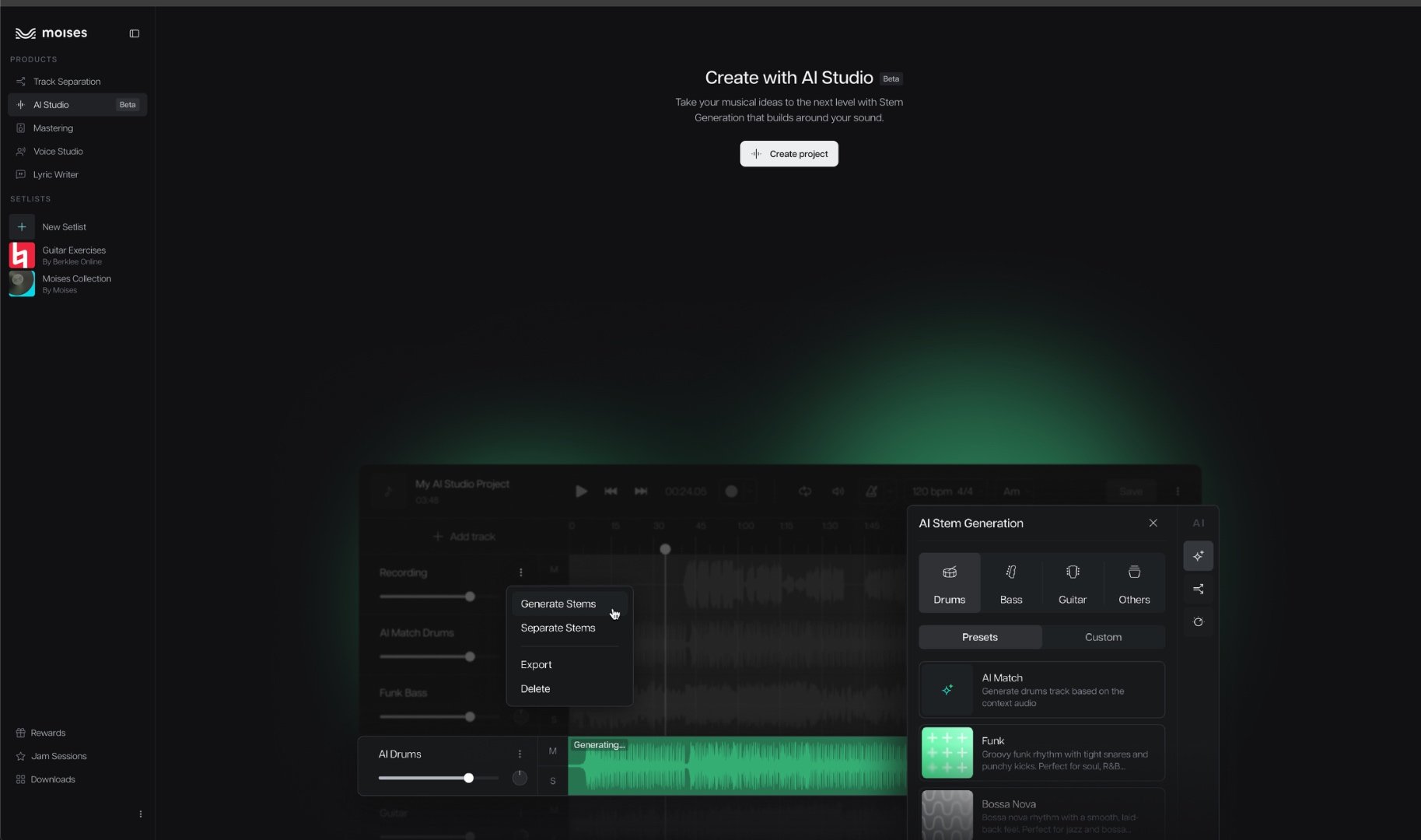
This is Moises's real point of difference. Session-player features in a DAW generate from the DAW's own internal stylistic library. A prompt-to-song tool like SUNO generates a complete song from text. AI Studio does neither — it listens to audio you supply and generates a new instrument part that locks to that material's tempo, harmony, and groove. Think "virtual bandmate," not "composer."
Generating an instrument
- Open the Stem Generation panel (the sparks icon, right side of the AI Studio window).
- Choose Drums, Bass, Guitar, or Others.
- Pick a generation method: Preset (a genre style), AI Match (fastest, follows your existing material), or Custom (write a prompt or upload reference audio).
- Generate. Mute/solo to audition — regenerations don't overwrite, they stack as comparable alternatives.
Sectional regeneration — the most useful trick
Rather than regenerating an entire part, you can select just the problem area in the waveform. This is the single most valuable AI Studio feature if you're repairing an otherwise-good production that's 80–90% right with one bad section:
Regenerate selection (Custom)
Choose another preset or enter a custom prompt for just that section.
Regenerate selection (Auto)
Instantly generate a new version of that section only.
Generate from selection
Create an entirely new track limited to the selected passage.
The new version appears below the original for direct comparison — nothing is destructively overwritten until you choose to replace it. Everything outside the selection stays untouched.
Editing a generated stem
Via the three-dot menu on any generated track: Silence (mute a section), Cut (remove unwanted material), Crop (keep a selected area, delete the rest). Choose Replace existing to overwrite, or Save as a copy to keep both versions.
These tools are fine for rough project prep, but they're not a substitute for your DAW's own comping, crossfade, and pitch/time tools — route final material back into Logic for that work.
Chord-guided generation
Chords give the AI a harmonic roadmap. Without them, generated guitar, keys, or bass parts can drift out of key or feel harmonically vague. Chord guidance does not apply to drum generation — only to harmonic instruments.
- Add chords manually in the chord lane, or use AI Detect to auto-analyze root key, tempo, time signature, and chord changes.
- Open the Stem Generation panel, pick your instrument, and toggle "Use project chords" ON in Settings.
- For fast harmonic rhythm, increase the metronome subdivision for finer chord placement.
- Generate, listen, adjust the chord lane if something feels off, and regenerate.
Slash chords, inversions, altered dominants, suspensions, chromatic passing harmony, and extensions. If you're comfortable identifying chords by ear, correcting the chord lane manually before generating is very likely to produce better results than accepting the auto-detected progression.
Writing a prompt that works
Moises's own guidance is explicit: describe musical behavior, not artists or song titles. Named-artist prompts are against the platform's rules and the models aren't trained to recognize them anyway — expect them to be ignored or unproductive.
| Weak | Strong |
|---|---|
| "Bass like a famous Motown session player." | "Melodic fingerstyle electric bass, warm rounded tone, syncopated anticipations into chord changes, restrained under the vocal, more active in turnarounds, avoid constant root-note eighth notes." |
Prompt building blocks
Instrument
fingerstyle bass, picked bass, muted guitar, brushes, tight studio drums, open hi-hat funk groove
Era
late-1960s soul, early-1970s singer-songwriter, mid-1980s polished pop, contemporary cinematic R&B
Feel
behind the beat, on top of the beat, relaxed pocket, urgent, sparse, driving, syncopated
Tone
warm, dry, saturated, round, bright, gritty, intimate, wide
Performance behavior
"play sparsely under the vocal," "build toward the chorus," "use short fills every eight bars"
Negative instructions
"avoid constant fills," "avoid slap bass," "avoid busy playing under the verse," "avoid excessive reverb"
Reference audio over text
For groove, articulation, note density, and pocket, a clean reference audio clip often communicates intent more precisely than text — a dry bass sketch, a simple guitar comp, a hand-played four-bar demonstration. A fully mastered, dense commercial track as a reference tends to confuse the model about which characteristic to actually follow — too many simultaneous properties (arrangement, mastering, multiple instruments, ambience) compete for attention.
Starting from nothing
You can also record directly into AI Studio: set tempo and time signature, arm a count-in, record a simple piano or guitar idea, then layer AI-generated drums and bass on top. Keeping the source sparse and unambiguous tends to produce cleaner generation results than feeding it a dense, fully-produced reference.